Android and iOS devices: Configure Kiosk mode
Kiosk mode is a security feature that allows you to lock down an Android or iOS device so activity is limited to a specific app or task.
Android devices only: When a device is in Kiosk mode and Google auto-updates the KACE Agent, Kiosk mode is not automatically restarted. Normally this fixes itself when the user presses a hardware button, but if not, the administrator can do any of the following:
- Send a reboot command to the device, which causes the device to start in kiosk mode.
- Open the KACE Agent app and click the Restart Kiosk Mode button.
- To enable Kiosk mode:
- Go to Libraries in top navigation.
- Select Restriction Sets.
- Select an existing restriction set, or click Add New.
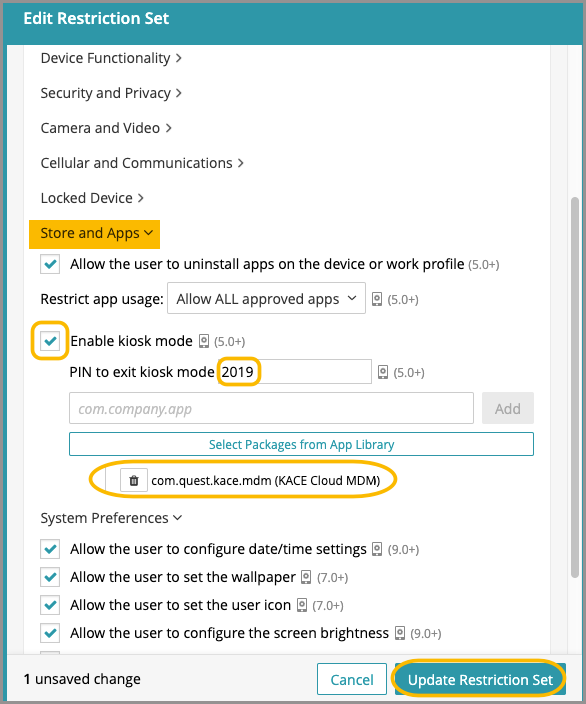
- Under the Store and Apps section, check Enable kiosk mode.
For Android EMM devices, you may also choose to create a PIN that can be used to temporarily suspend Kiosk mode.
- Click Select Packages from App Library to choose which apps will be functional under Kiosk mode.
For a list of Android and iOS built-in package IDs, see Android, iOS, and macOS apps: Manage usage restrictions
- Select one or more apps, then click Add Package.
- Click Update Restriction Set.
- To exit Kiosk mode:
- For iOS devices: To exit iOS kiosk mode, use the built-in Guided Access method by triple-clicking the Home or side button, entering the passcode, and tapping End.
- For Android EMM devices: To exit Kiosk mode, the methods may vary depending on the Android version. Common options include:
- Hold down the Back button and the Volume Down button.
- Hold down the Volume Down button and swipe left or right.
- Hold down the Volume Down button and tap the on-screen Back (<) option.
If a PIN was configured, you can enter it to temporarily suspend Kiosk mode.
Why create a PIN to exit kiosk mode? The PIN is an especially helpful tool if an admin ever needs to temporarily exit Kiosk mode—for example, if the current Wi-Fi configuration is no longer valid and the admin needs to manually add a new one to regain connectivity.